


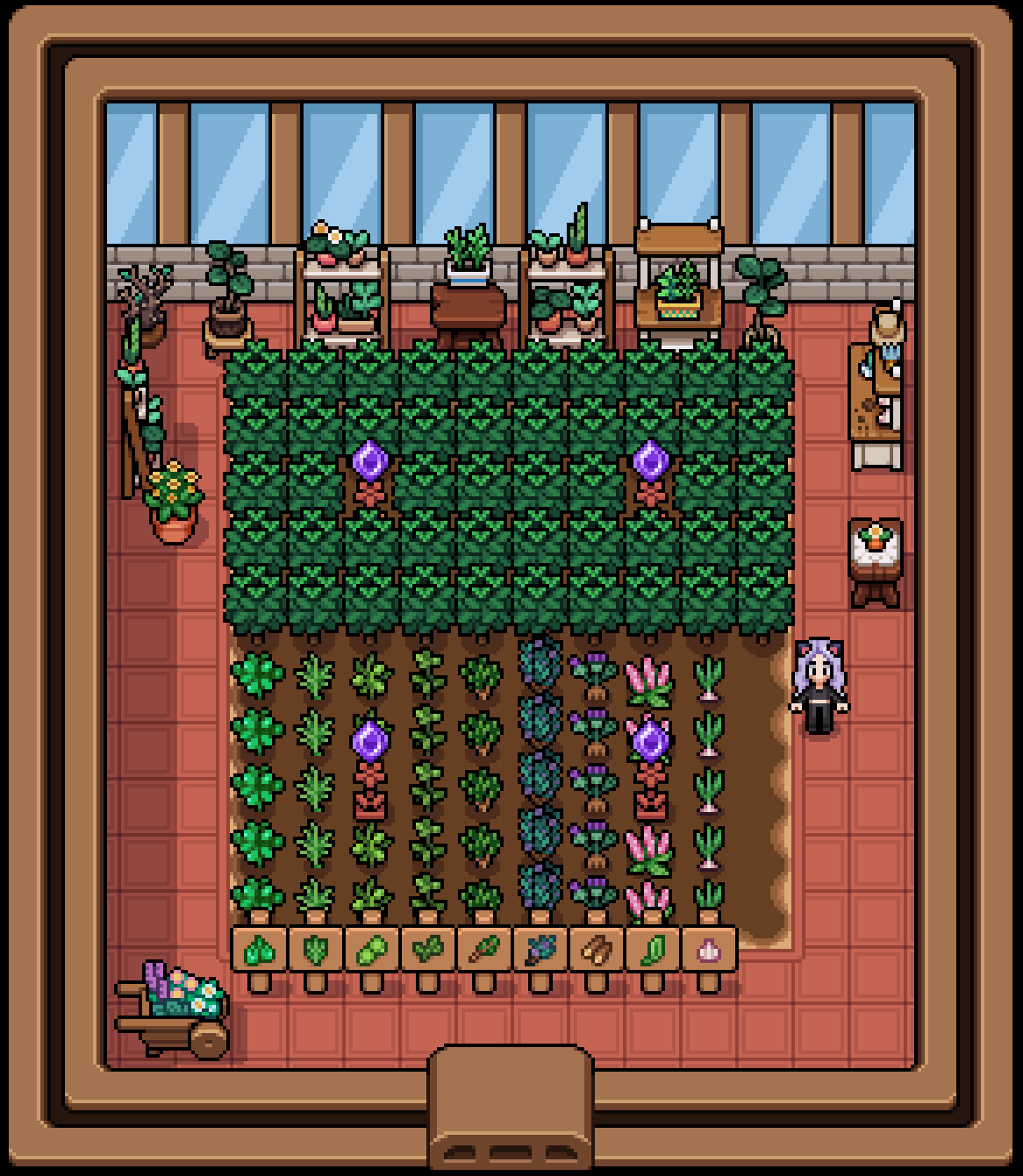
Herb greenhouse
This tutorial explains how to obtain the seeds required for a herb greenhouse by editing
the game save file
Prerequsities
First, you need to download tools required to edit your save
file. You will need a program to convert your save file into a readable format and a
text editor to change contents. Also, you will need to make a new chest in the game:
- Download Vaultc tool
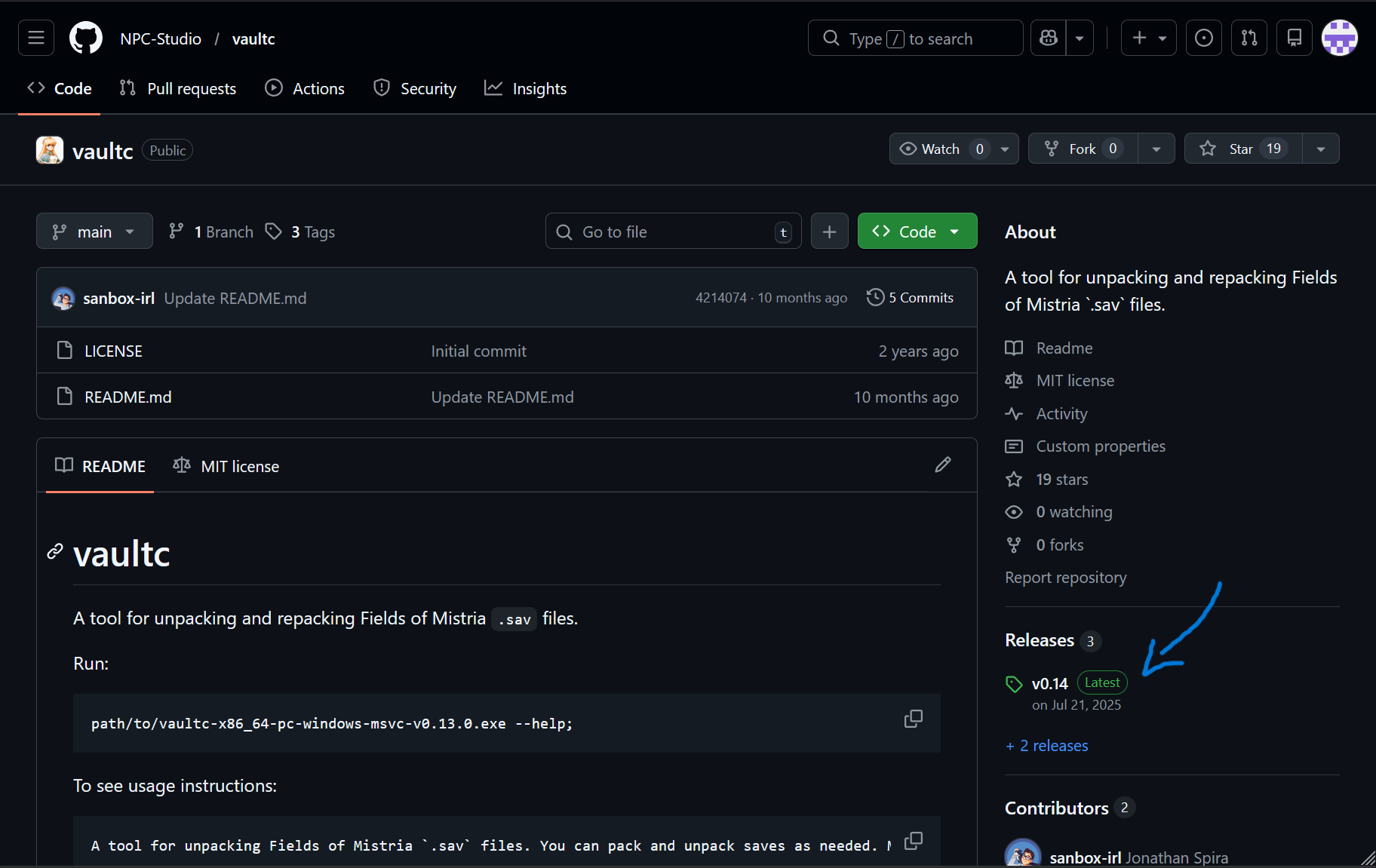
- Open this
link, click on right side of the page below
"Releases"
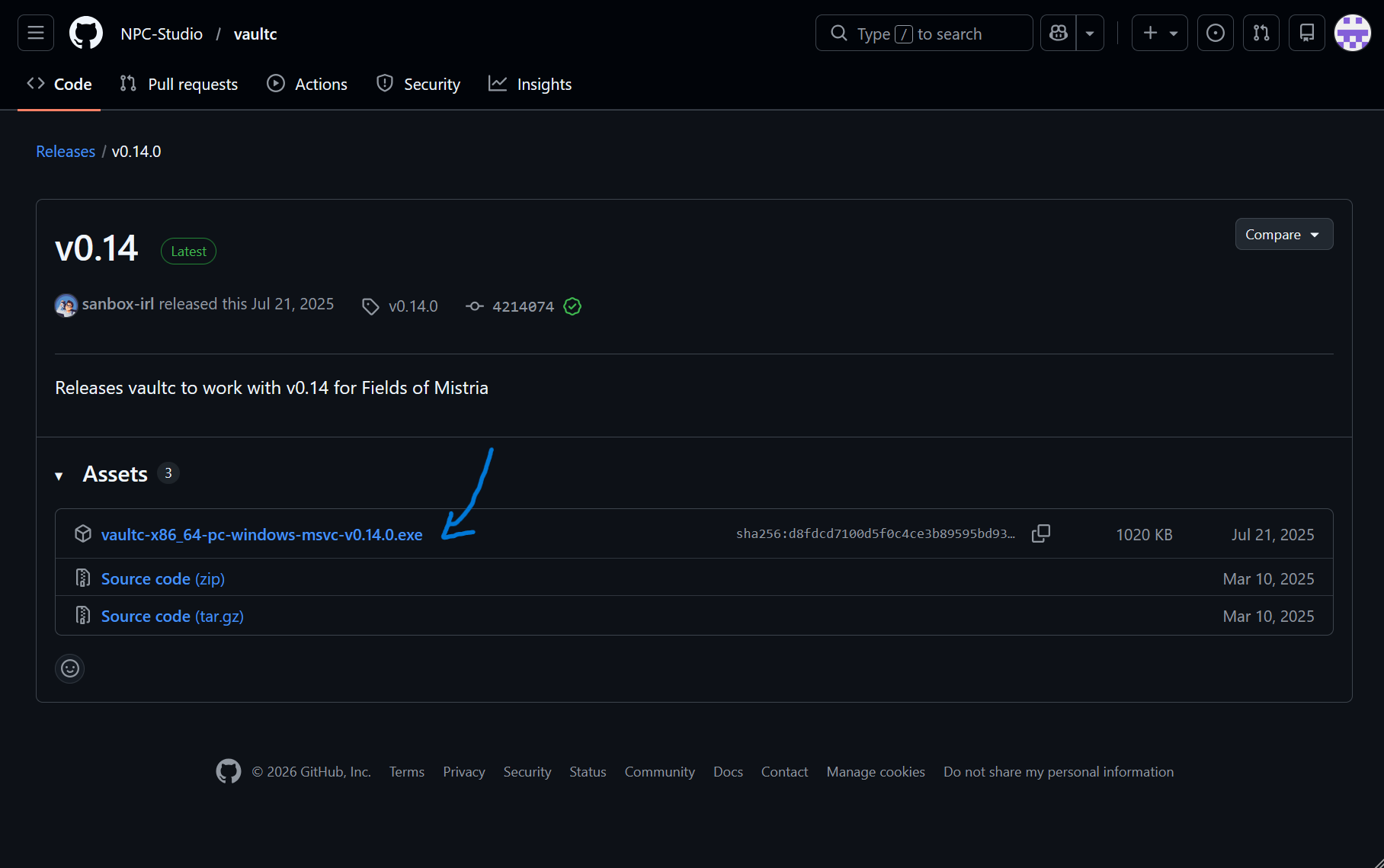
- Click on first asset, it should be an .exe file. That should start the
download
- Open this
link, click on right side of the page below
"Releases"
- Download and install Visual Studio Code (link). Theoretically you can use Notepad as well to make changes in your save file but I find working with VS Code easier.
- Prepare a chest in Fields of Mistria:
- open the game
- create and place a new chest in main room in your house (the one that's immediately after entering the front doors)
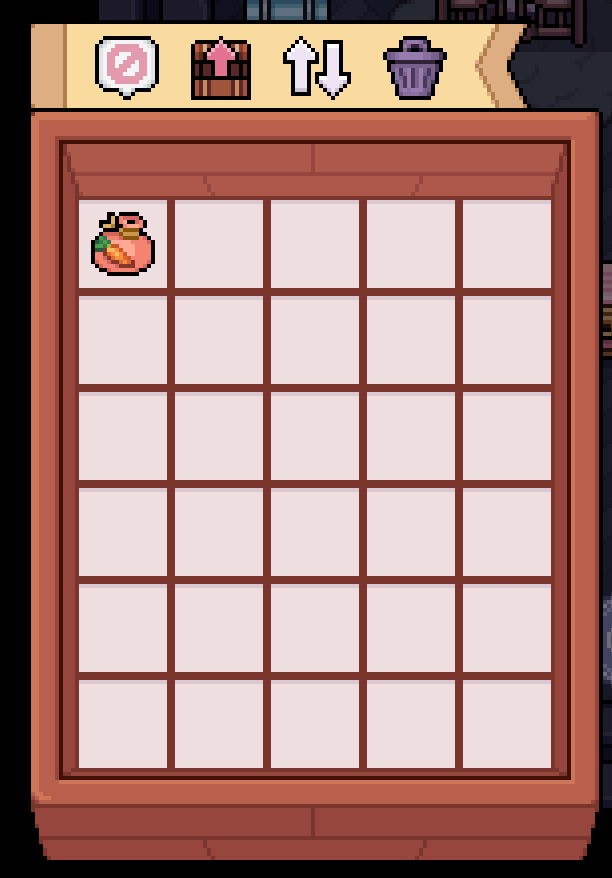
- add one seed to it (I did carrot seed)
- save game manually
- exit the game completely (not to the title screen)
Editing save file
- Lets start with making a folder to work in:
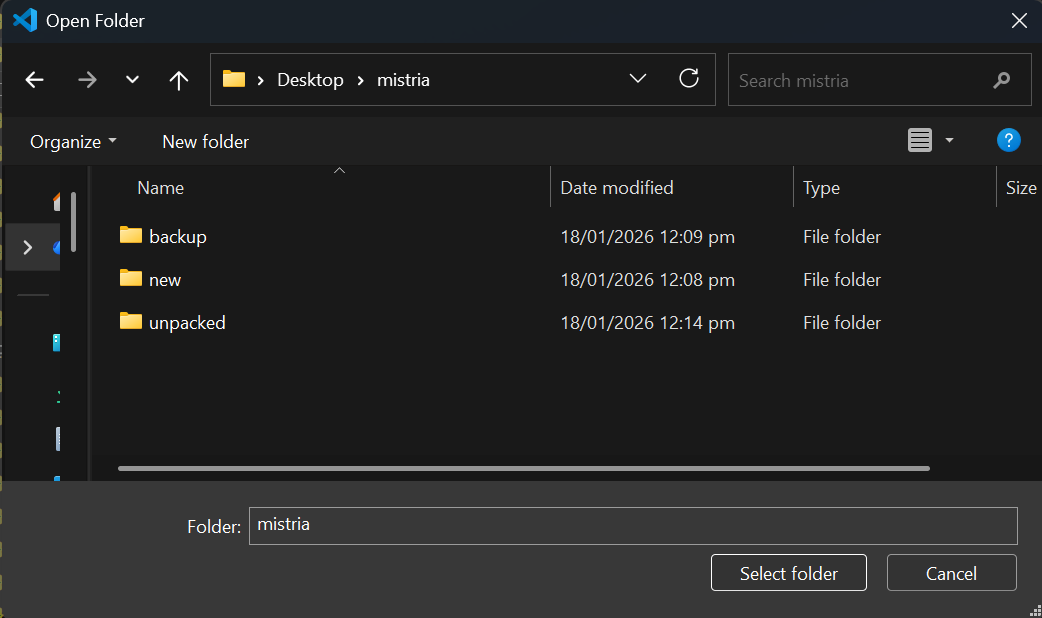
- Create a folder with name "mistria" on your Desktop
- In that folder, create another 3 folders, name them "backup", "new" and "unpacked"
- Find the Vaultc tool you dowloaded in previous step and move it to "mistria" folder
- Go to your save file folder. For Windows, you usually can find it in
this folder
C:\Users\%USERNAME%\AppData\Local\FieldsOfMistria\saves
- copy the most recent file. It's name will start with "game", followed by bunch of numbers and dashes, end with .sav. You might not see the extension part, depending on your settings
- paste your save file in "mistria" and "backup" folders. Your folder
should look like this:
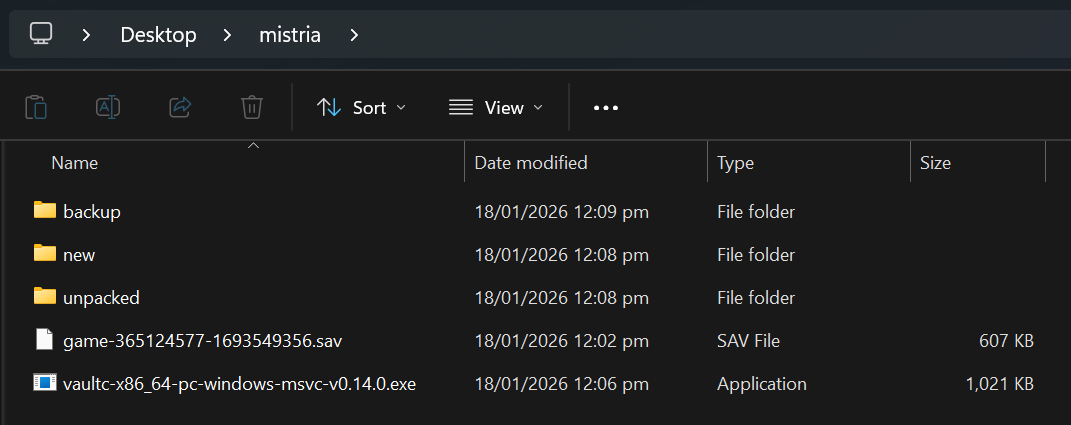
- Unpacking the save file:
- Currently your save file is in unreadable format. To fix that, right
click in the folder "mistria", then click "Open in terminal"
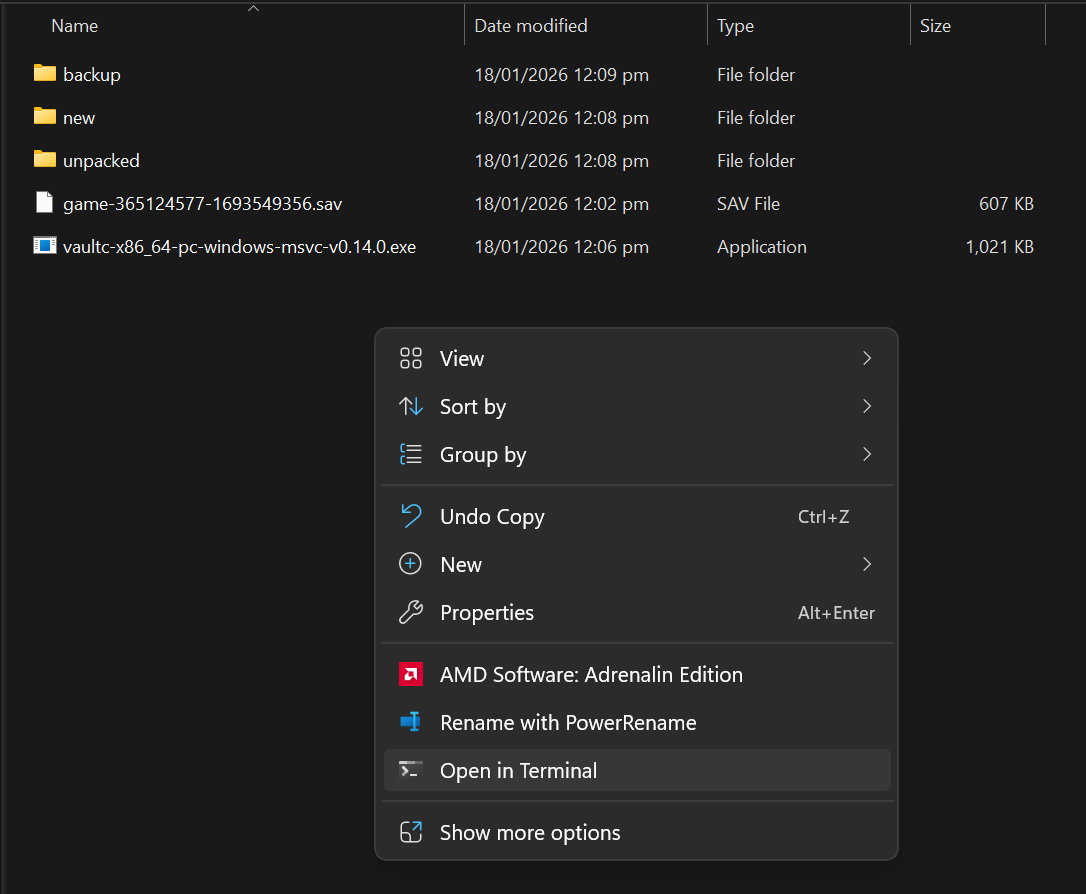
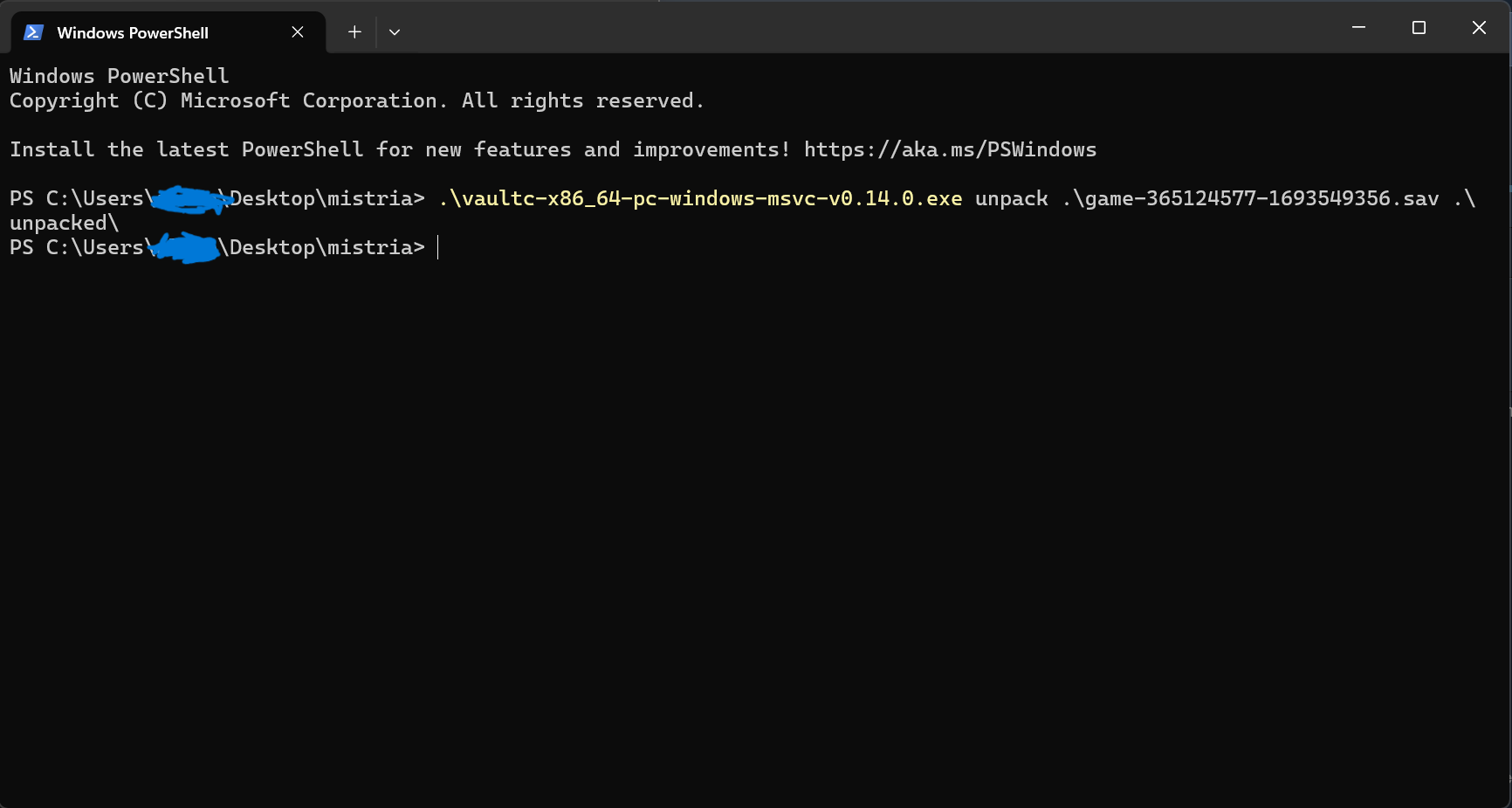
- Type in the command below and press enter. You need to change
"game-365124577-1693549356.sav" to name your save file has. While you
are typing in the command, you can press tab, it will try to
autocomplete word you are currently writing
.\vaultc-x86_64-pc-windows-msvc-v0.14.0.exe unpack .\game-365124577-1693549356.sav .\unpacked\
- "unpacked" folder should have bunch of files in it now
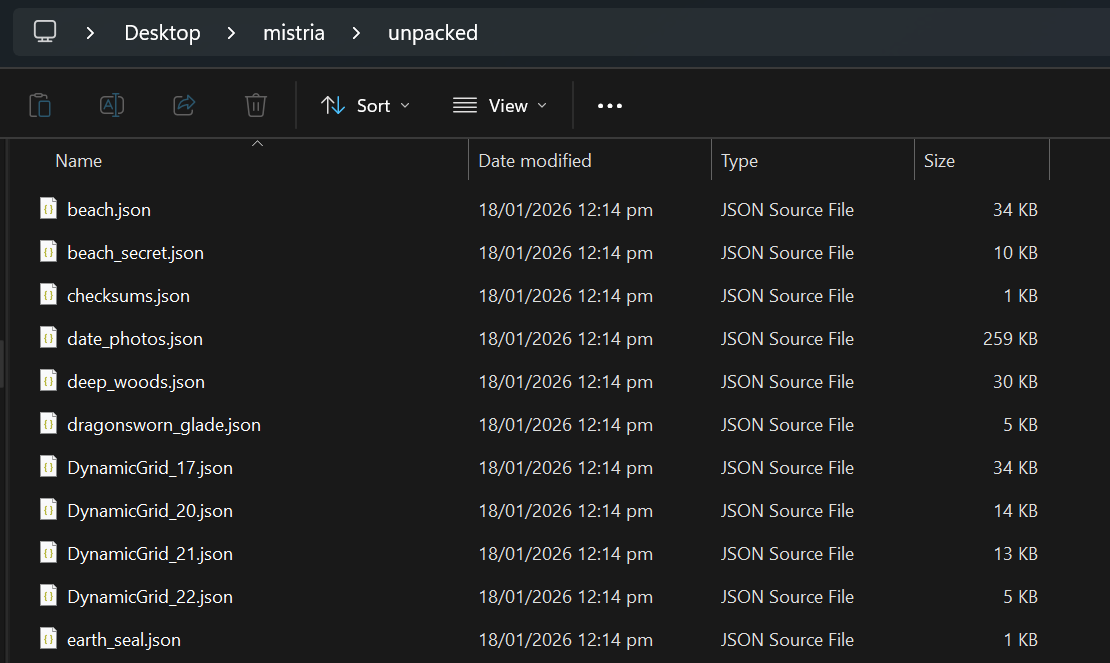
- Currently your save file is in unreadable format. To fix that, right
click in the folder "mistria", then click "Open in terminal"
- Editing your save file:
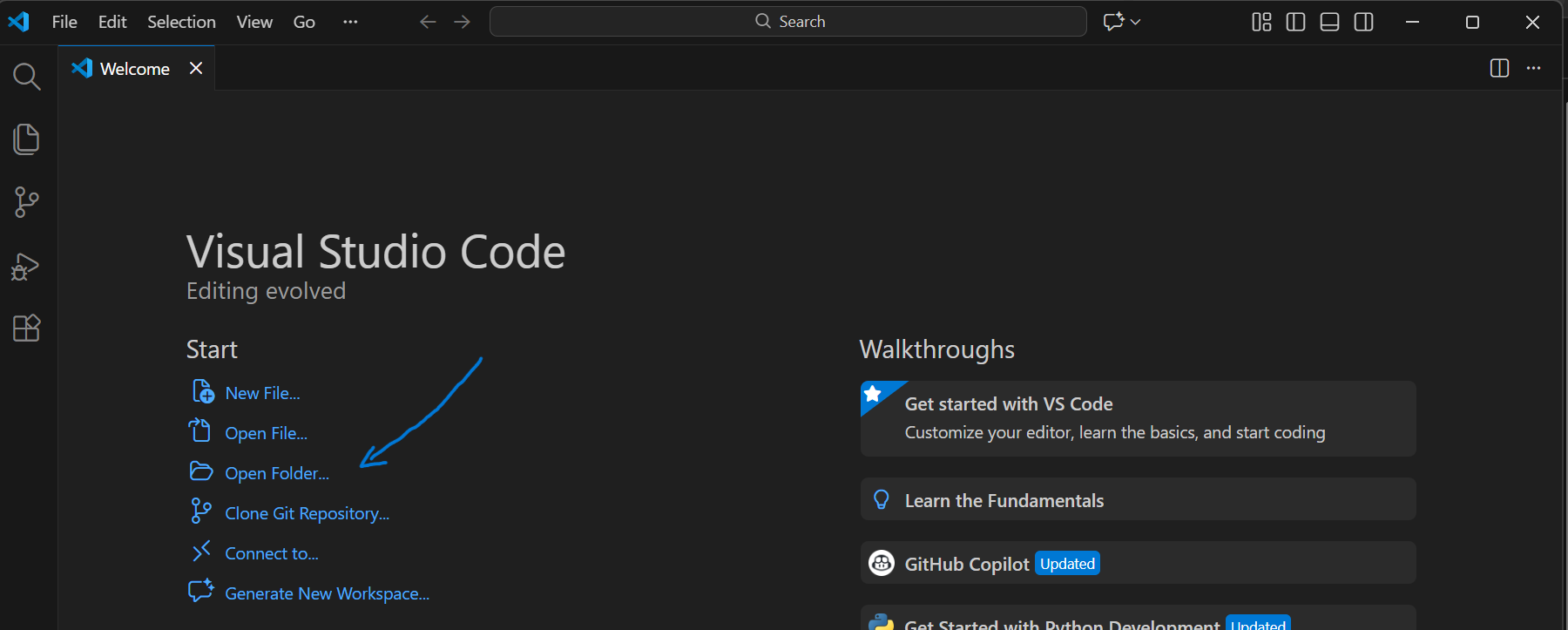
- Open VS Code
- Click "Open Folder"
- Choose "mistria" folder and click "Select folder"
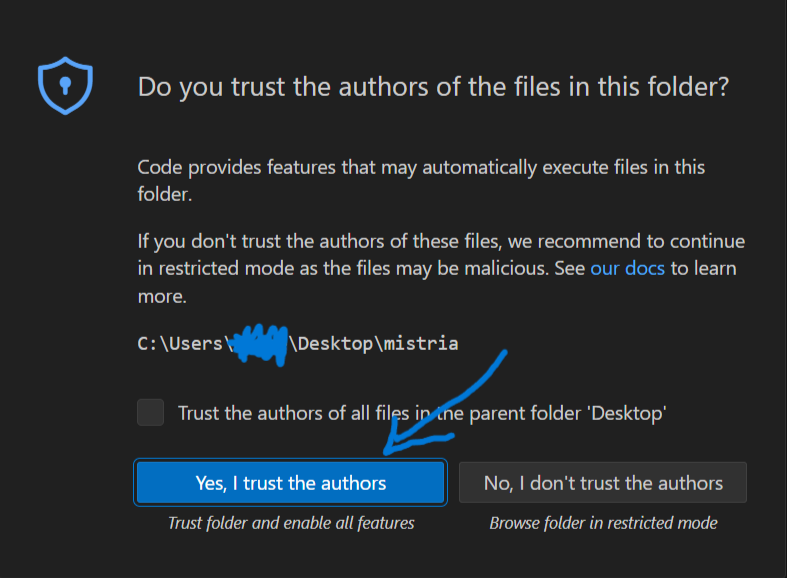
- Click "Yes, I trust the author"
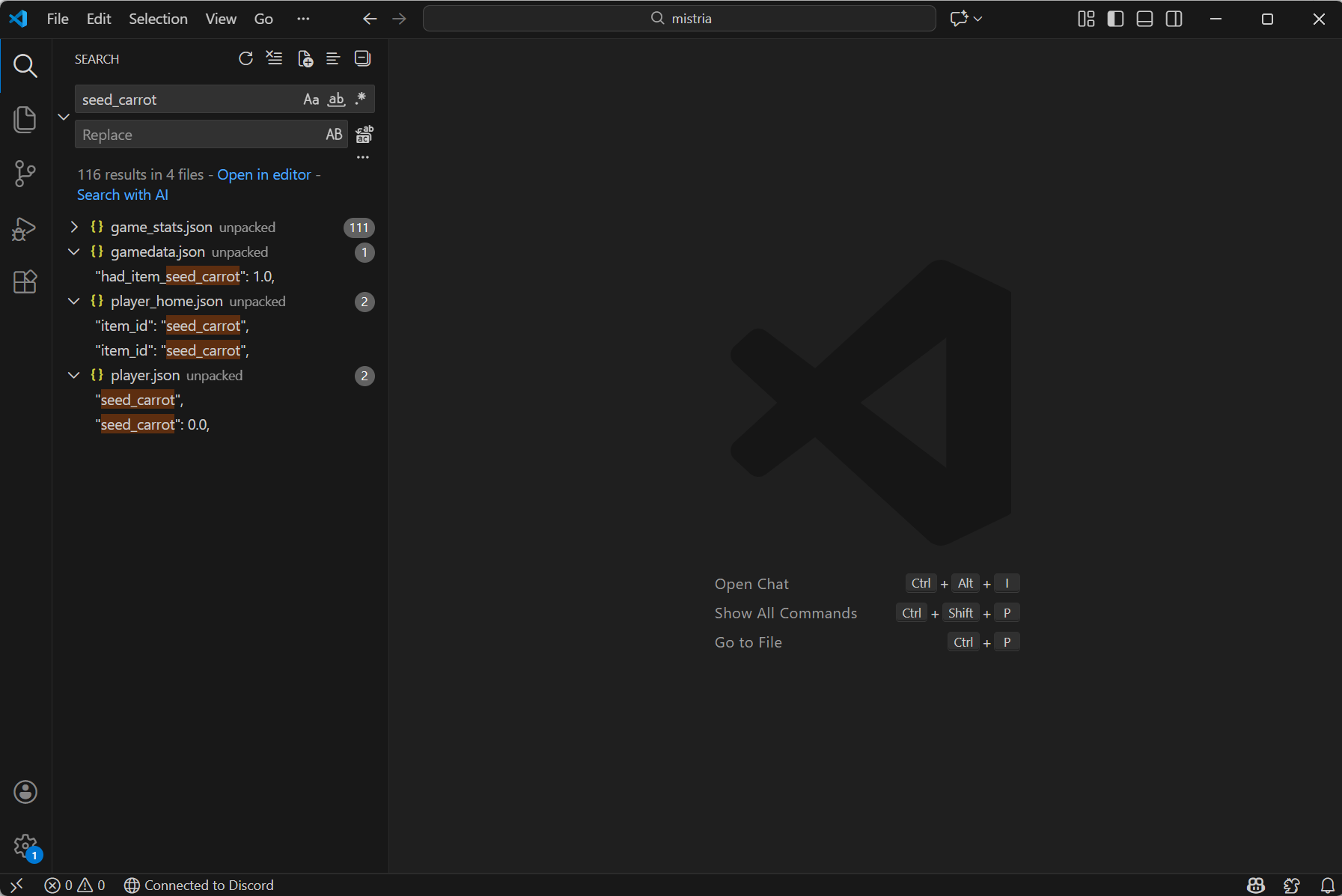
- Click on magnifying glass icon on the left side and type in
"seed_carrot". It will show all the files were it found "seed_carrot".
You will need to open files "gamedata.json", "player_home.json" and
"player.json". You can open them by clicking on orange highlighted part
under each filename. You will NOT need the "game_stats.json"
file
- In "gamedata.json" file, you need to find line that says
"had_item_seed_basil". It will be under "t2_world_facts". You can search
in opened file by pressing CTRL + F. The line most likely will say
"had_item_seed_basil": 0.0
You need to change it to"had_item_seed_basil": 1.0
In case number already said "1.0", that means you have found a basil seed already in game and don't have to do anything in this and next step. Save file by pressing CTRL + S.
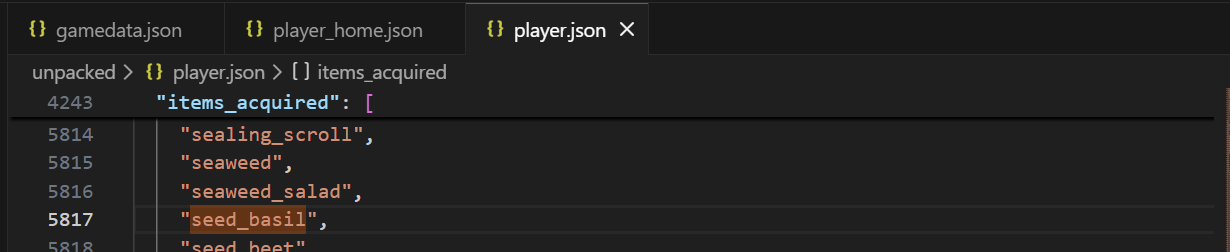
- In "player.json" file, you need to find "items_acquired". Under that you
need to add "seed_basil". In case you have already found a basil seed,
it's gonna already be there, and you don't need to add it again. This
list is alphabetically sorted, I suggest adding the new line in the
correct spot alphabetically. Save file by pressing CTRL + S.
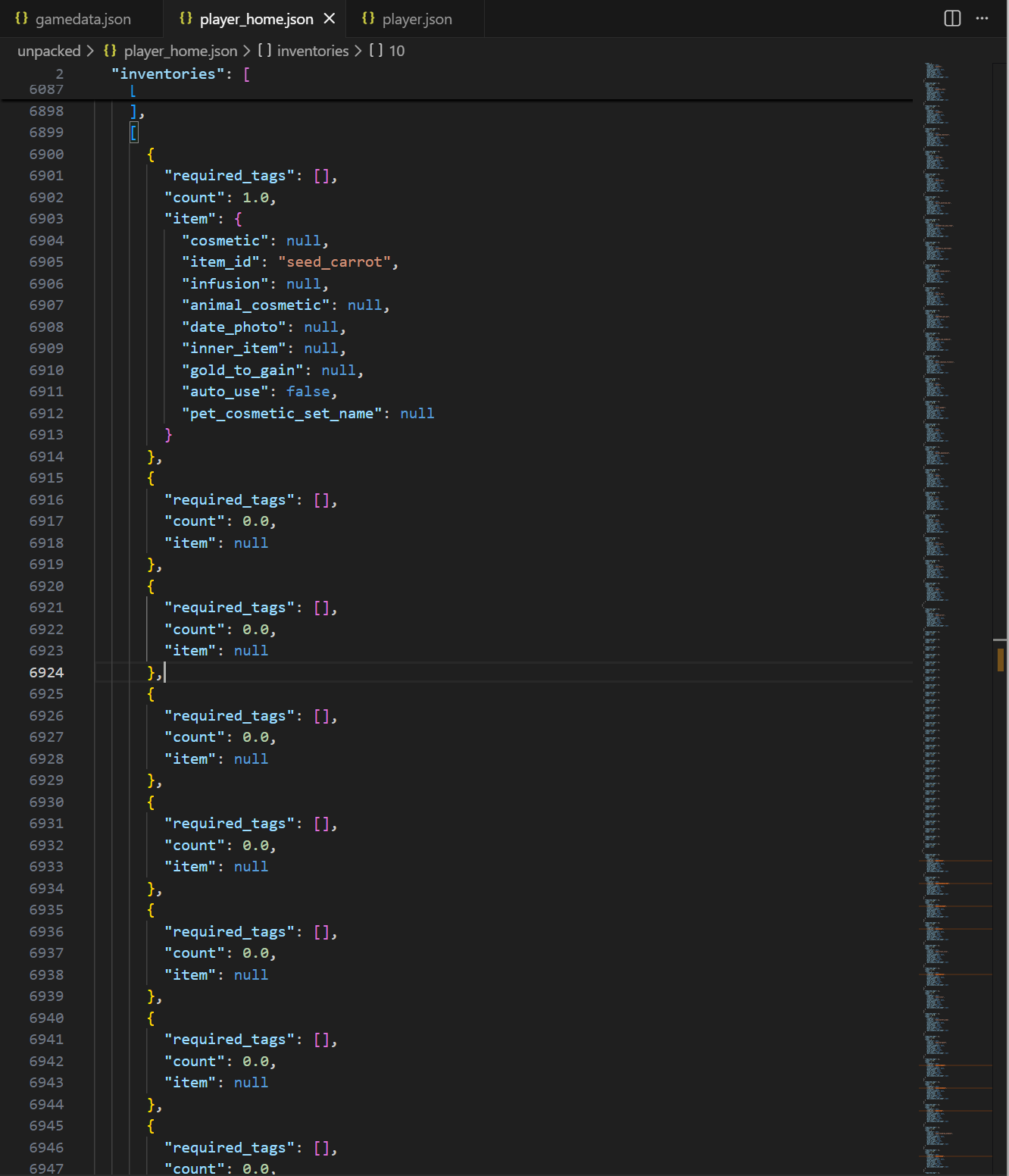
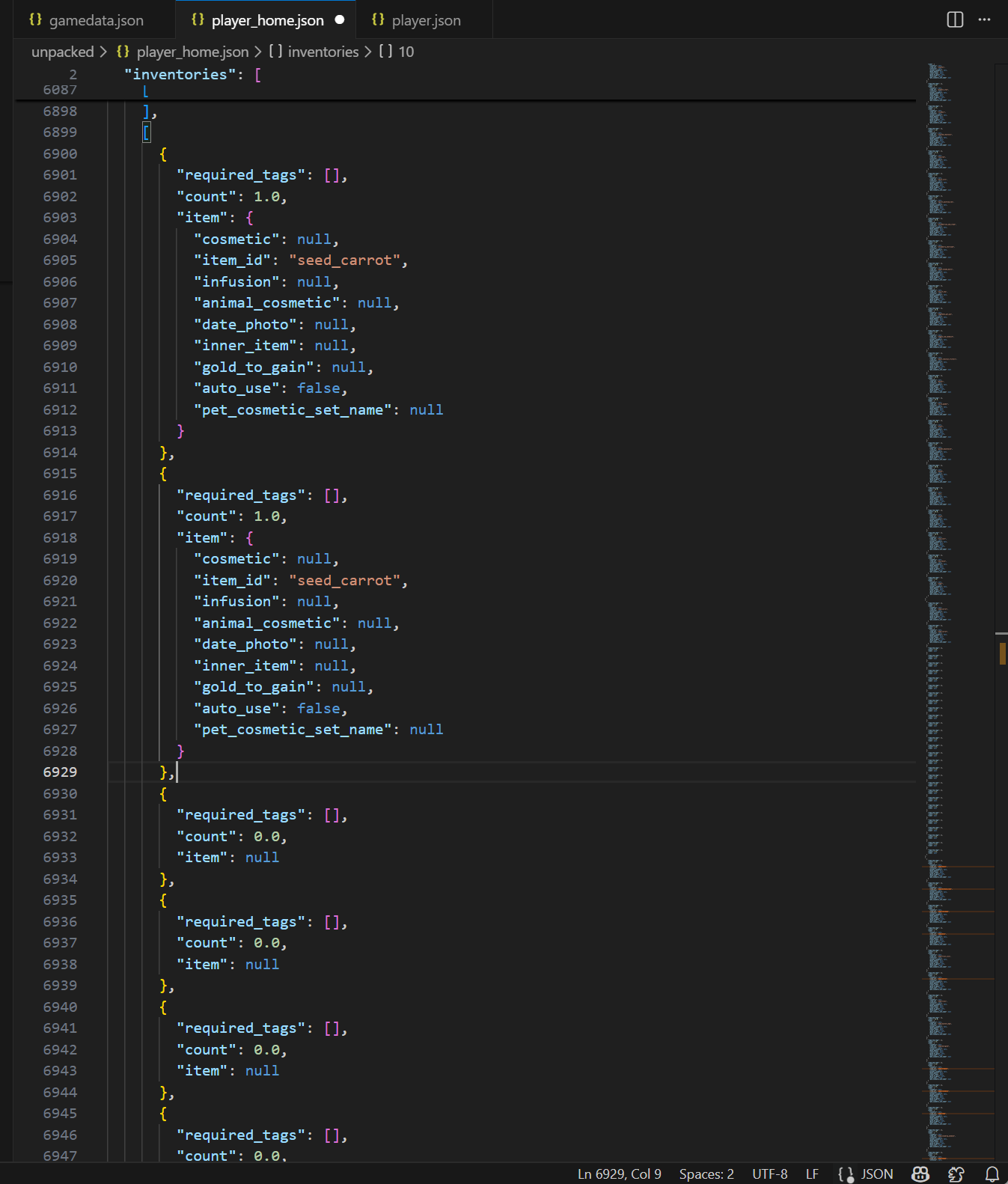
- In "player_home.json" file, find "seed_carrot" under "inventories". It
might be in multiple lines, we are interested in only newly created
chest, so, it will have only one carrot seed and the rest of slots will
be empty. In the file, it will look as below:
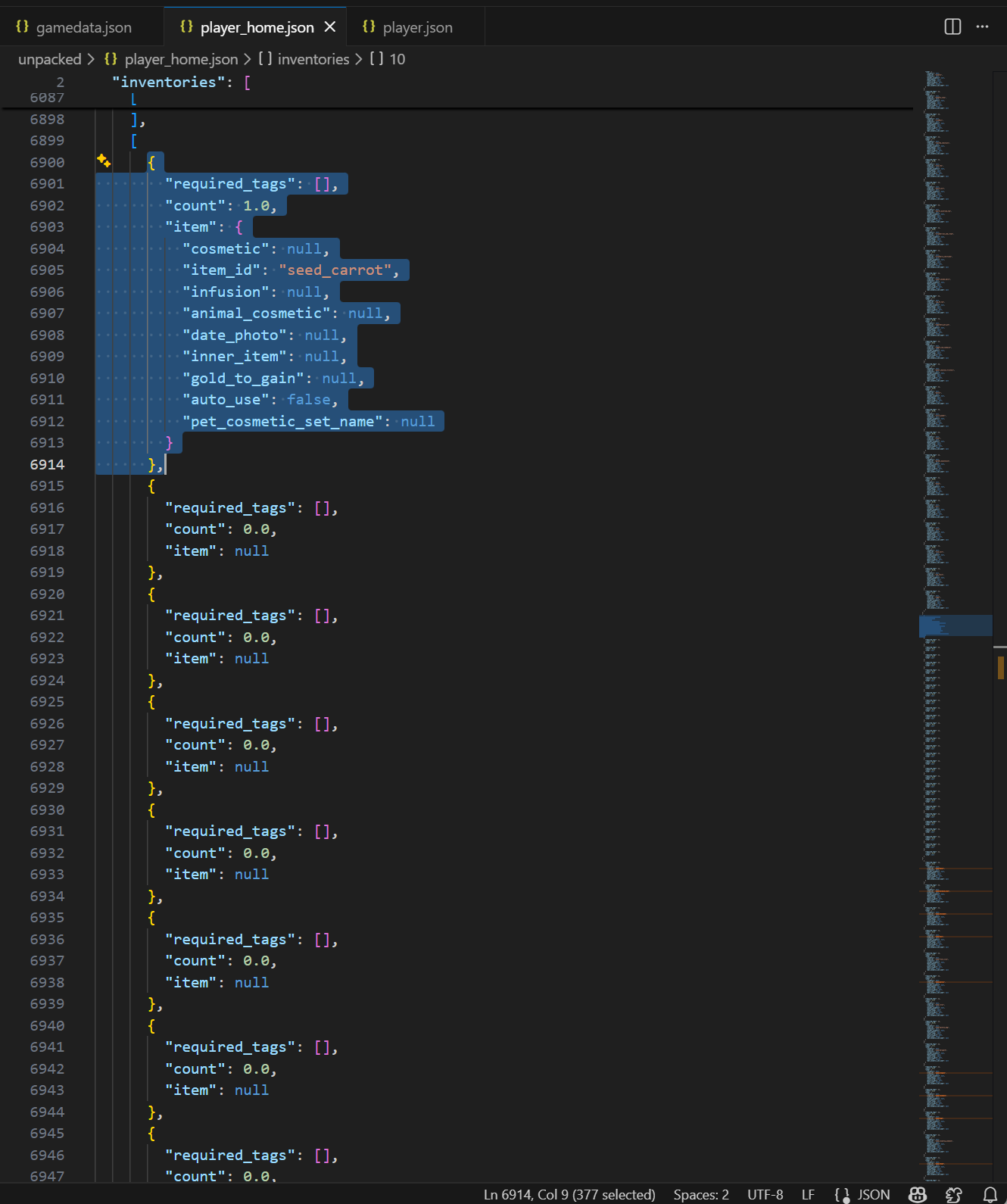
- Select the part as shown in image below and copy it
- select the part as shown below and paste
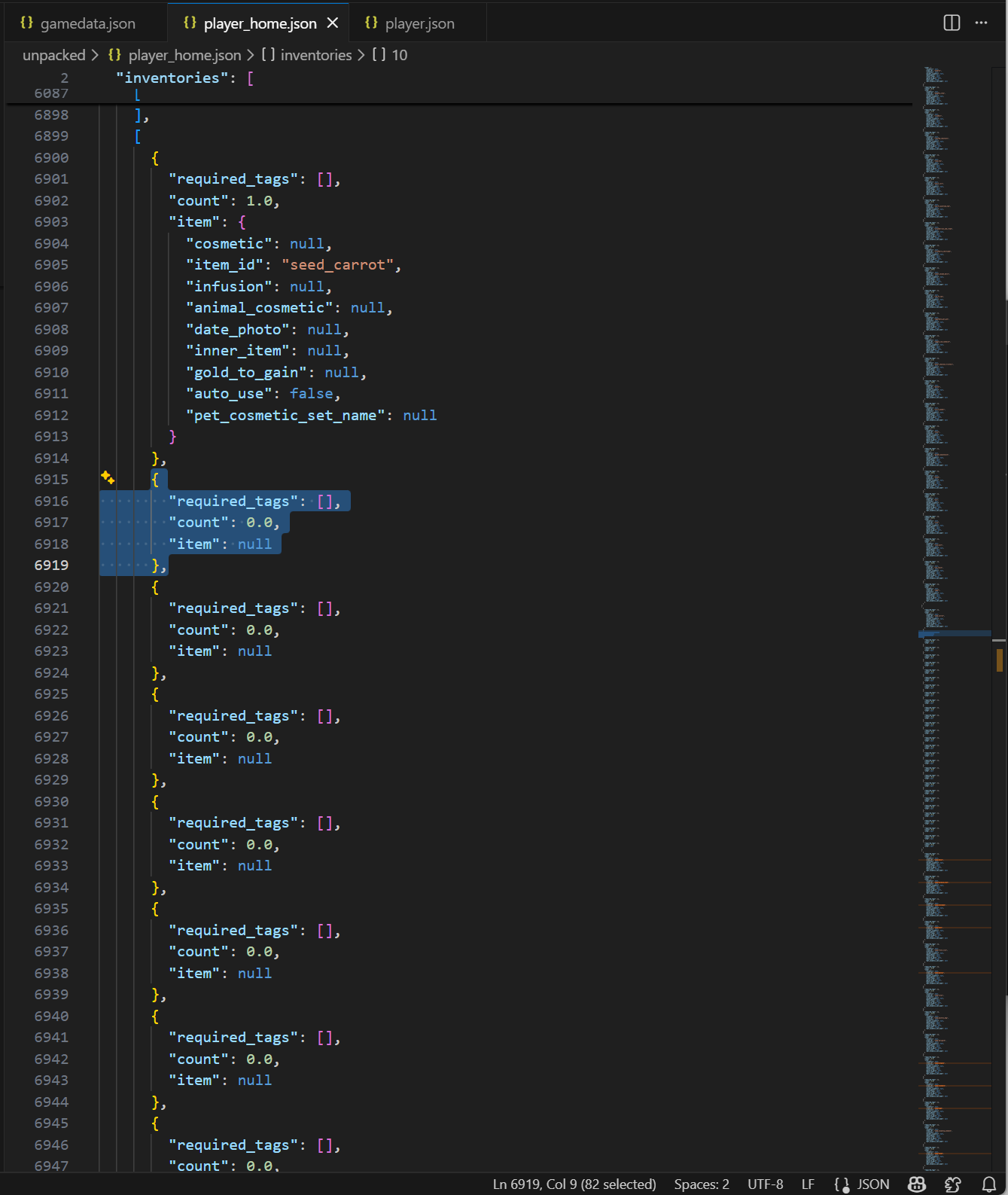
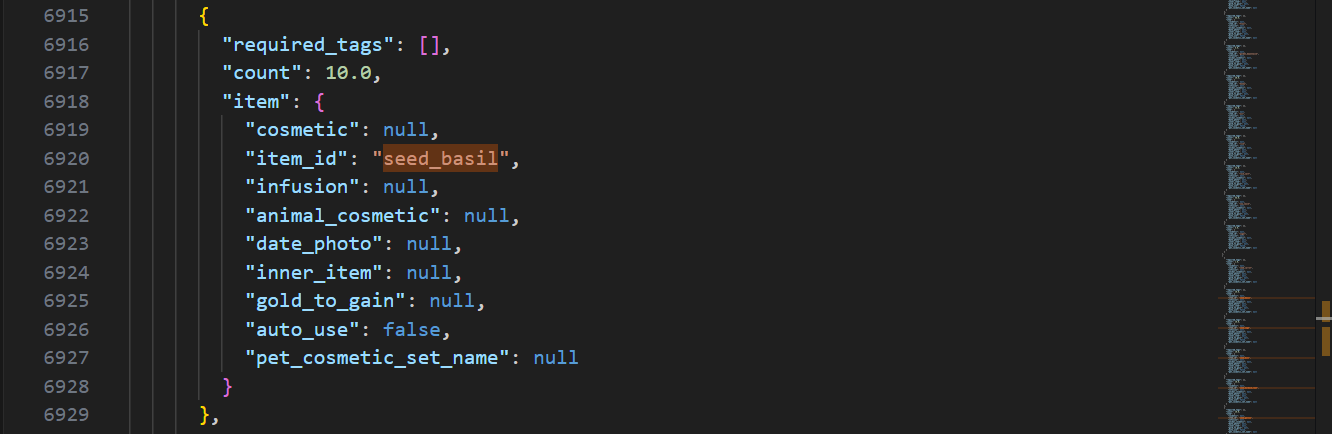
- It will look like this:
- Change "seed_carrot" to "seed_basil" and change count to "1.0"
to "10.0" or however much you want to. Save file by pressing
CTRL + S.
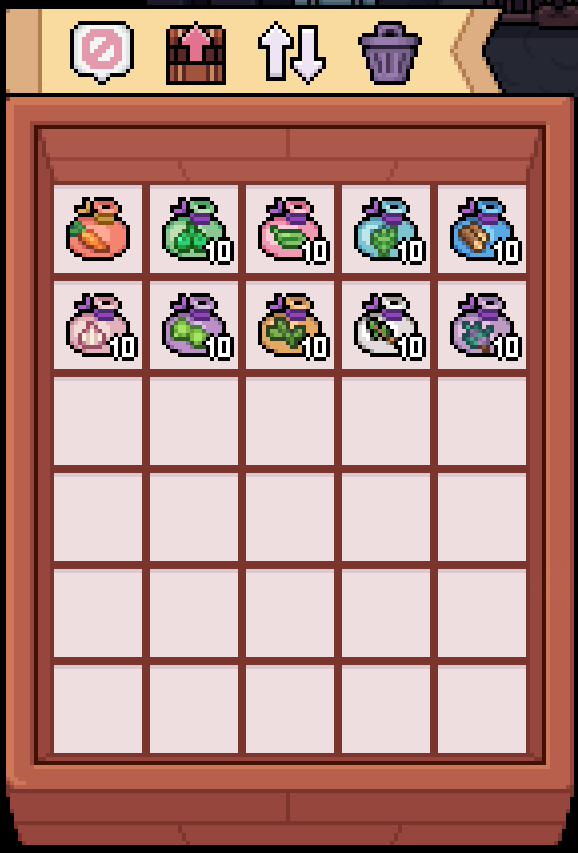
- Repeat those steps with all herb seeds:
seed_basilseed_chickpeaseed_dillseed_oreganoseed_sageseed_thymeseed_garlicseed_rosemaryseed_burdock_root
- Check again that you have saved all the files and you can close VS Code
- Select the part as shown in image below and copy it
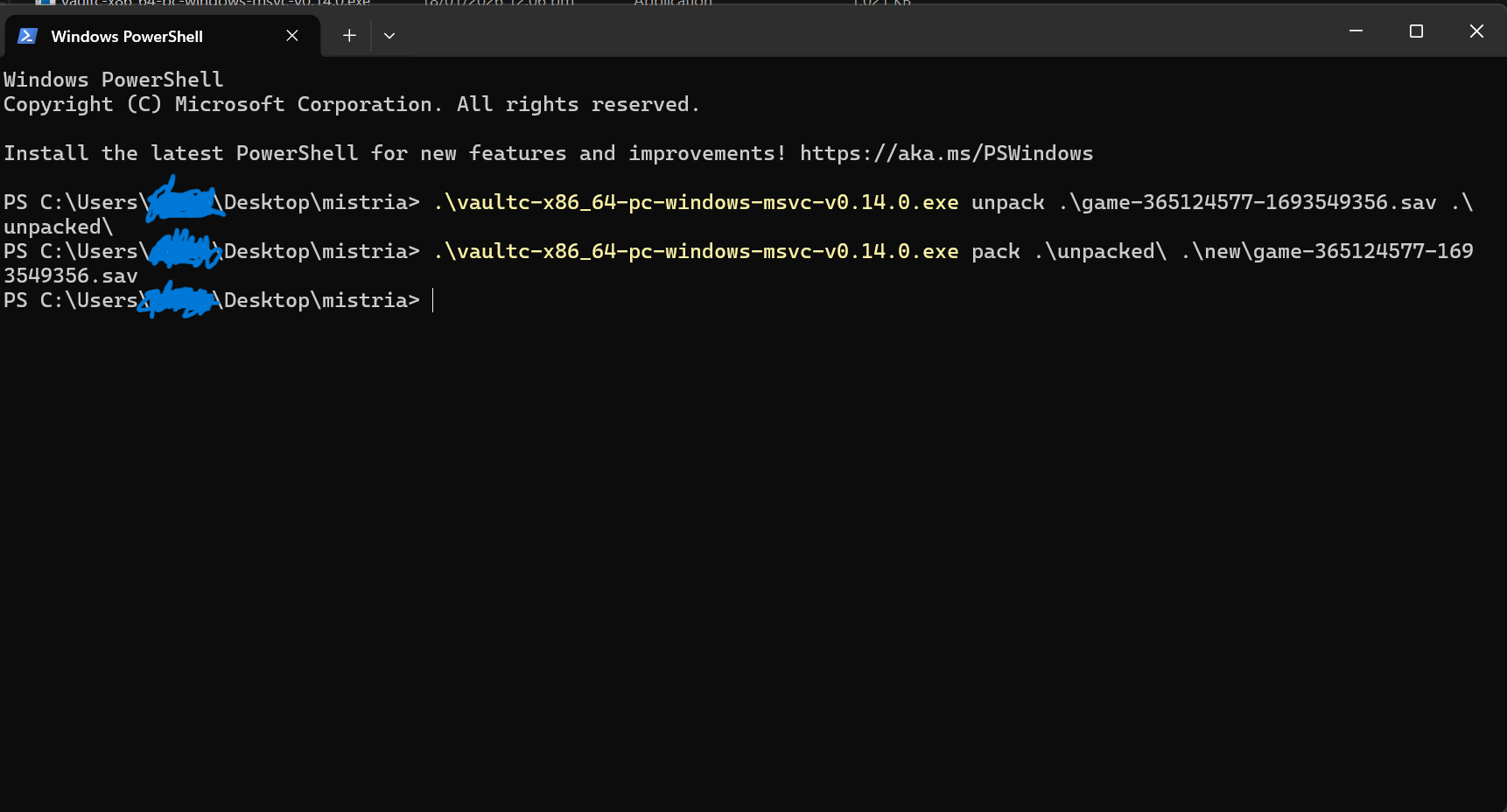
- Open the terminal again and run command below. Remember to change
filename to one you have
.\vaultc-x86_64-pc-windows-msvc-v0.14.0.exe pack .\unpacked\ .\new\game-365124577-1693549356.sav
- Open "new" folder, copy the only file there
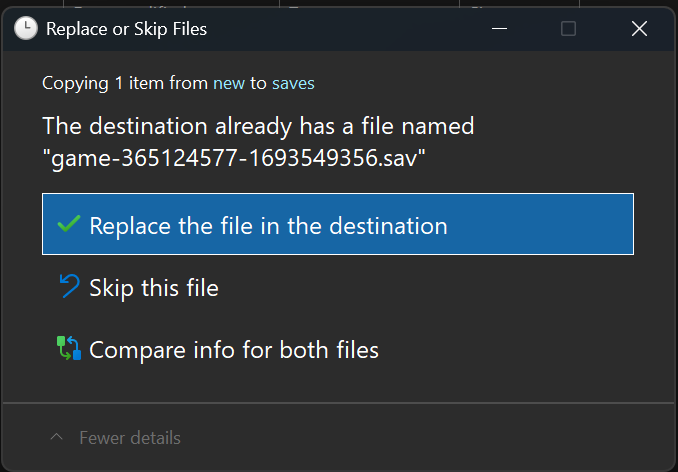
- Open save file folder, paste just copied file in there. There should be
a popup asking if you want to replace file, you should replace it. If
there is no popup, either you have misspelled you new filename or you
have accidentally deleted file in previous steps
C:\Users\%USERNAME%\AppData\Local\FieldsOfMistria\saves
- Open "Fields of Mistria" again, the chest should contain all the seeds you
added! Plant them in greenhouse, remember that they grow only in specific
seasons if not using the greenhouse
 Tutorial
